Preface
FastTrack is built by admins for admins - and only for admins - to solve this very problem. FastTrack is
a gigantic toolbox built from the paradigm of:
one operation - one script line. If you need to synchronize files from one directory to
another, you write
one simple line in your script to do this and FastTrack will then show the user a friendly GUI while doing it. This of course
triggers hundreds of real codes lines in the engine, but you don't write the code to actually execute the operation;
you just specify what you want to accomplish. If you have a relatively large VBScript logon script today, you will be amazed how few script lines
you need to do the same - and more - with FastTrack. Anyone with IT understanding
can write a FastTrack script that does complex things, so now you can focus your energy on
what you want
done instead of
how you can do it. In essence, you are closer to configuration than actual programming:
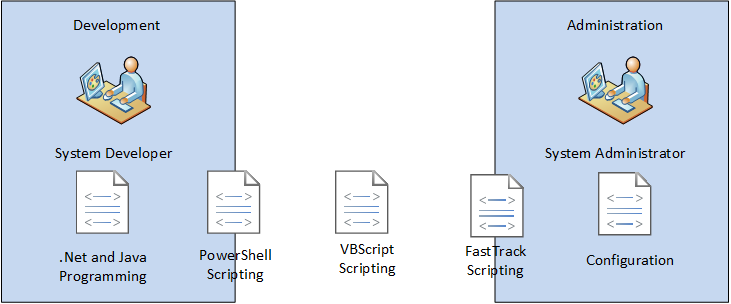
But there is more. Even though it is simple to write FastTrack scripts, time is a limited resource
for all systems administrators. For this reason, there is an even
quicker way of using the product. Let's review this drawing:
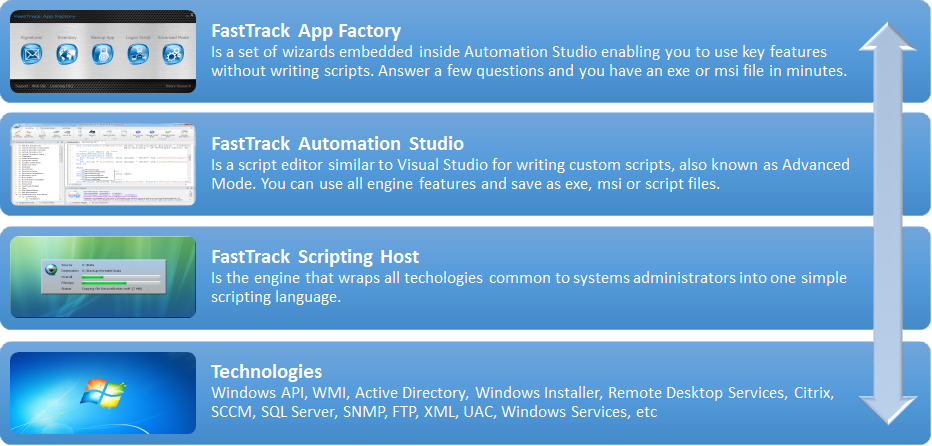
Home Screen - the scriptless approach
After successful installation, start the editor from the "FastTrack Automation Studio" icon. The first time you start the product,
the Home Screen from our drawing above will show as the default "mode" until you eventually click the "Script Editor" button.
When you click one of the other buttons, you are taken through a simple wizard that will build and exe or msi file for you from simple questions. What really happens is that
a small script is built for you and compiled into an exe or msi file. This approach will solve any of these tasks in minutes for you
without any prior knowledge of FastTrack. The video below shows use the Home Screen.
The FastTrack Automation Studio essentials in 90 seconds
Installing the software
If you haven't installed the software yet, you must
download and
install it. This is a simple process that takes a few minutes.
FastTrack Automation Studio - the script editor
When you click the "Script Editor" button in the Home Screen, you are taken to Automation Studio, which is for manually writing scripts.
It looks like this:
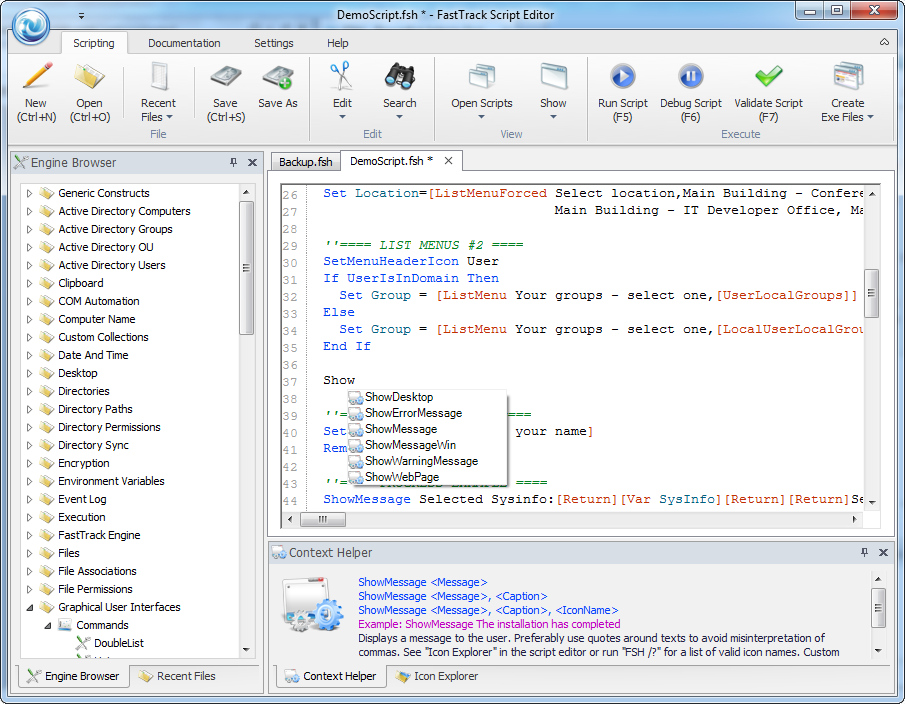
The first time you start the editor, you are offered to open a demo script. Try running it by pressing F5 in the editor.
You can also press F6 and run a script in debug mode. Running in debug mode allows you to step through the script and see exactly
how the script is parsed at runtime.
The "Engine Browser" tree shows all commands, functions, collections and conditions.
When an item is marked in the tree, the "Context Helper" shows a full explanation of the selected item.
If you for instance need to execute a program, you locate the "Run" command in the tree and double-click it
to insert it into your script at the cursor position (or drag it into the script). A Script Builder is opened
to help you create the correct parameters.
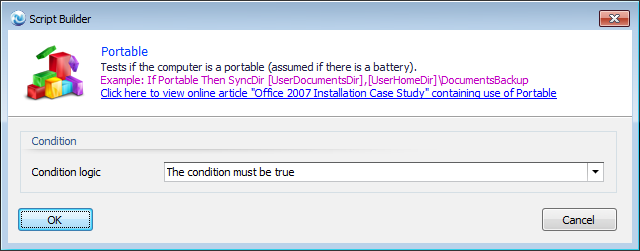
The editor automatically highlights commands, functions, collections, conditions and loops (which are all explained further down this page).
As you move around in your script, the editor senses what you are doing and automatically
displays an explanation in the "Context Helper" panel. This happens completely on-the-fly as you type
letters or move around in the script. As you type, the case will also automatically be corrected. If you type the command "splash", it will
automatically be corrected to "Splash" (with a capital S).
The editor also has code completion: In the above screen dump, "Show" was typed, and 6 commands are suggested.
You can disable the Script Builder, if you prefer to write the parameters directly in the script. If you do so, a
template is copied into the script instead. You will most likely find that in the beginning, you will be using the property
builder, but as you get familiar with scripting, you will write the scripts directly with aid from
code completion. A small tip on finding a command: When you write a new line, you can press space to open a full code completion window. When you select
a command, the space is removed.
To ensure script quality, a script validator is built into the editor. When you save or execute a script, a simulated run is performed to validate
if there are any syntactical errors in your script, like a missing parameter. If the script cannot pass a simulated run,
you will be notified of what line is the problem. This means that you cannot save or execute an invalid script, unless
you uncheck the "Validate Before Save" setting.
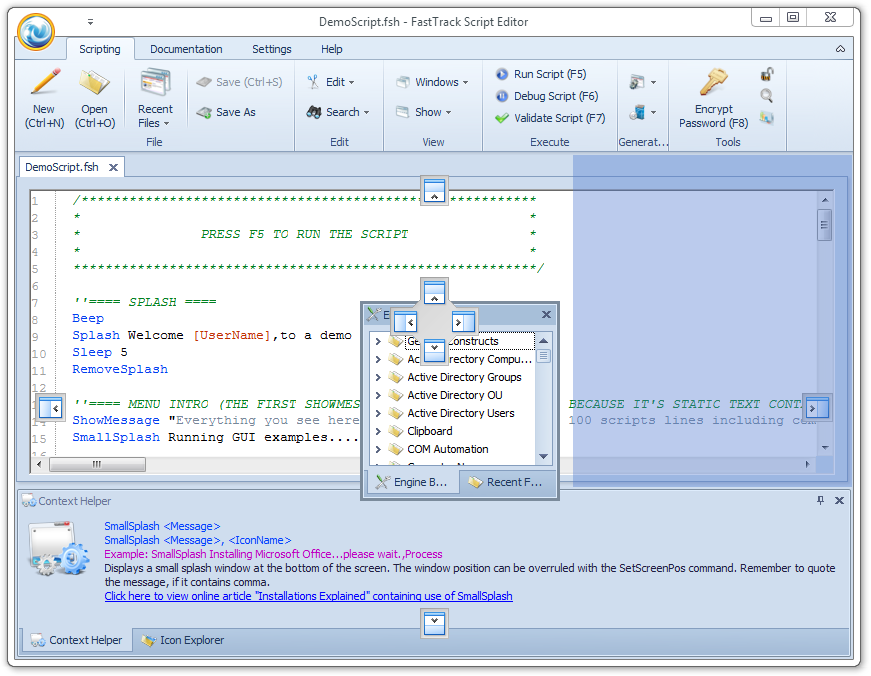
The editor is completely customizable. You can change the skin and move the panels around like in Visual Studio. This is the same editor where
a panel is dragged:
Writing scripts
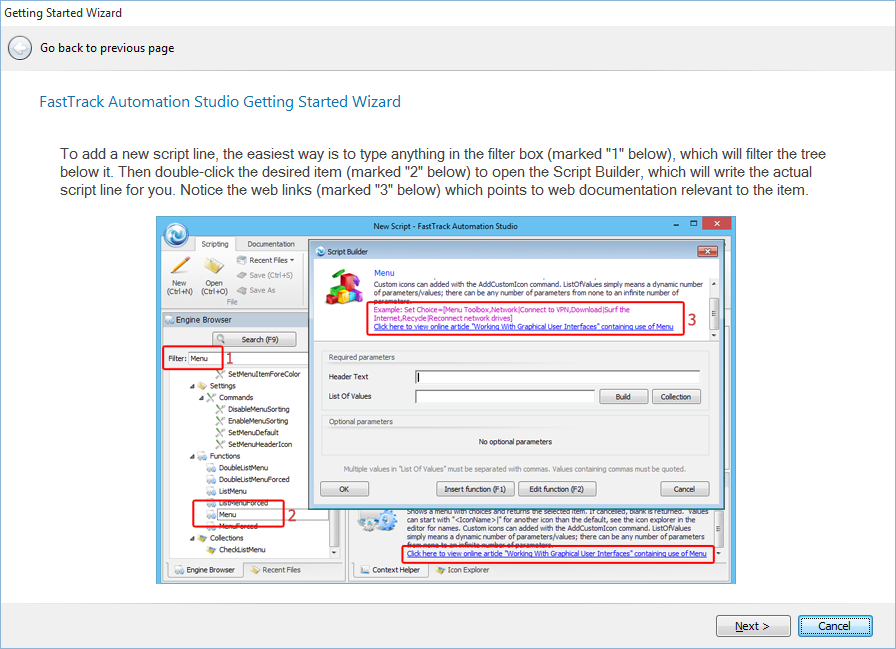
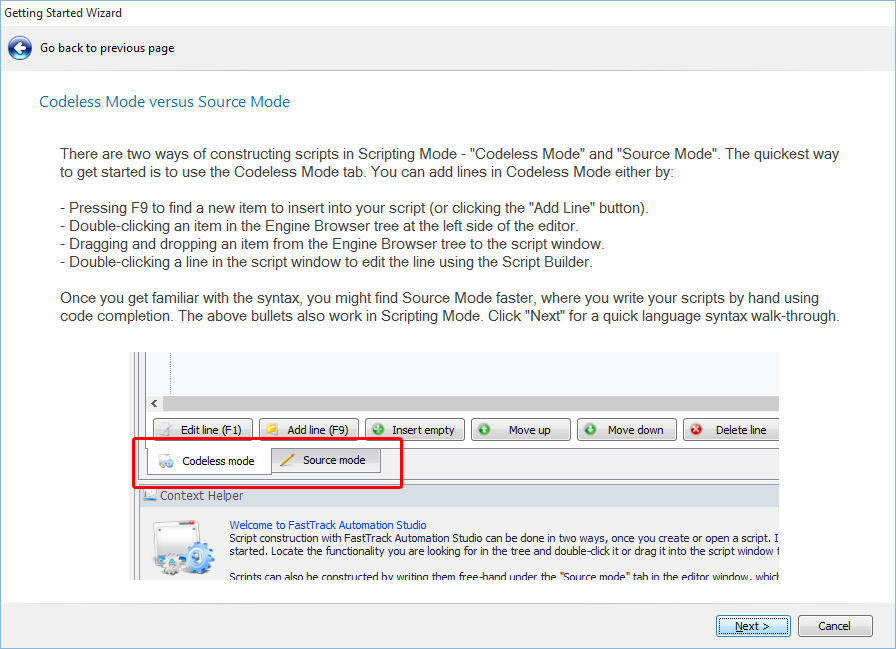
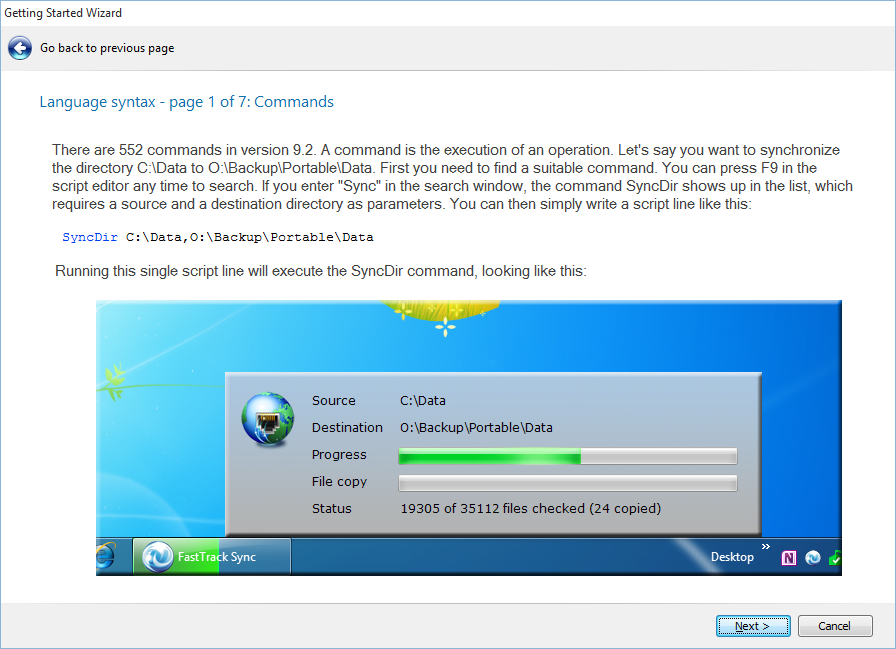
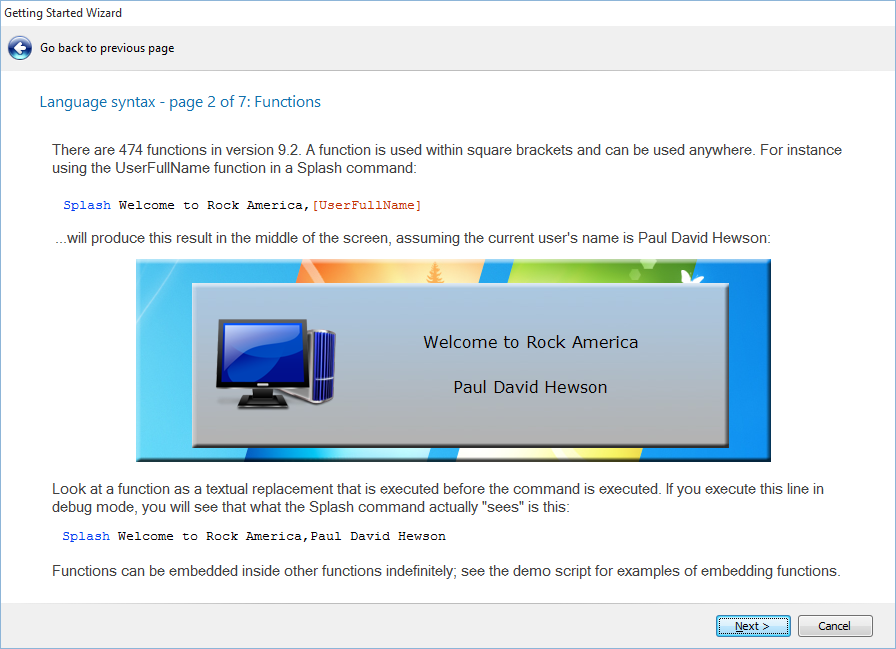
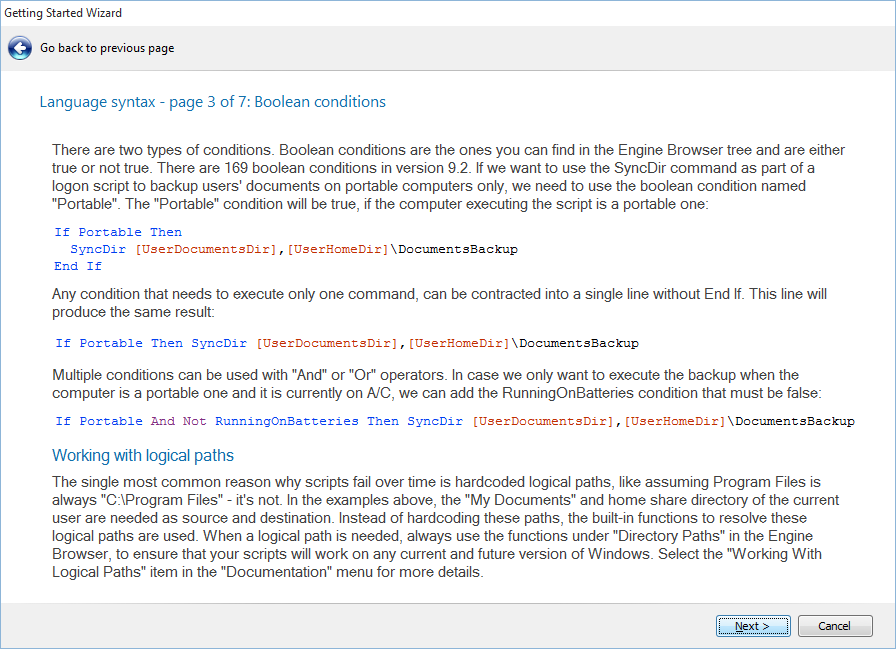
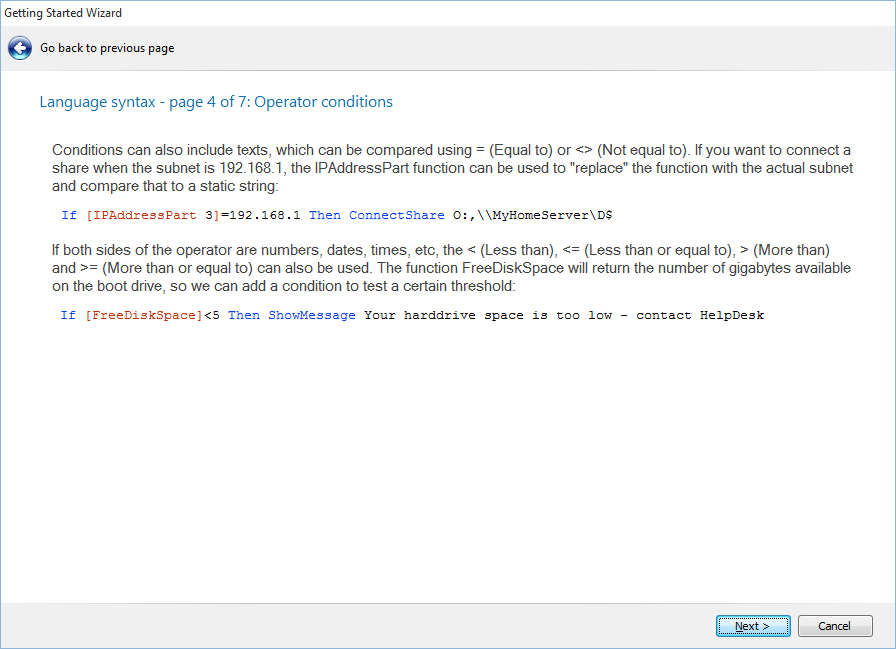
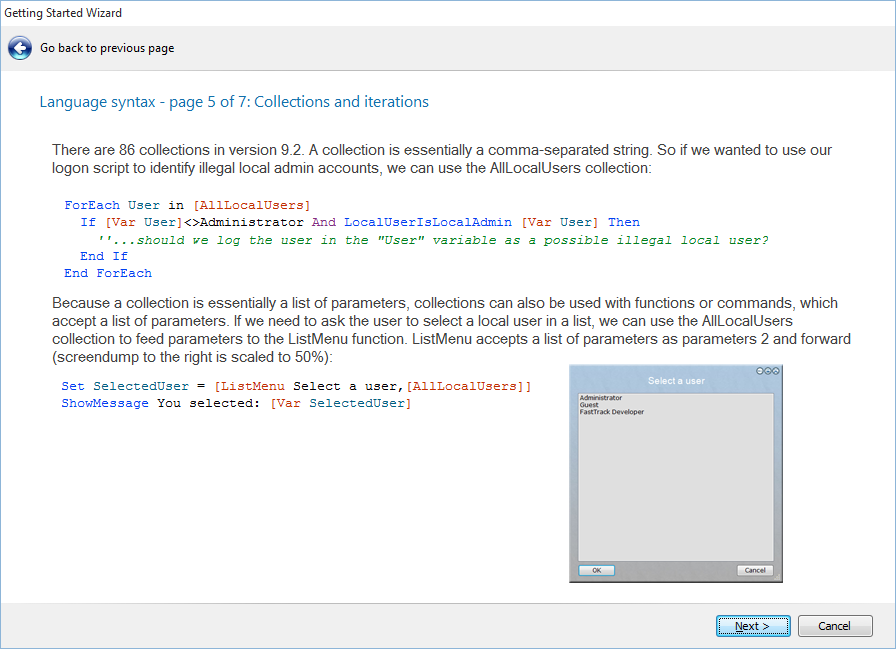
Before you read on, it is right recommended that you use the "Getting Started Wizard" at the top menu in the editor,
as it explains the syntax. Because this wizard gives you all the essentials of the language, all pages are shown
below and then below the pictures, the syntax is explained in more detail. Here are the "Getting Started Wizard"
pages from the editor:
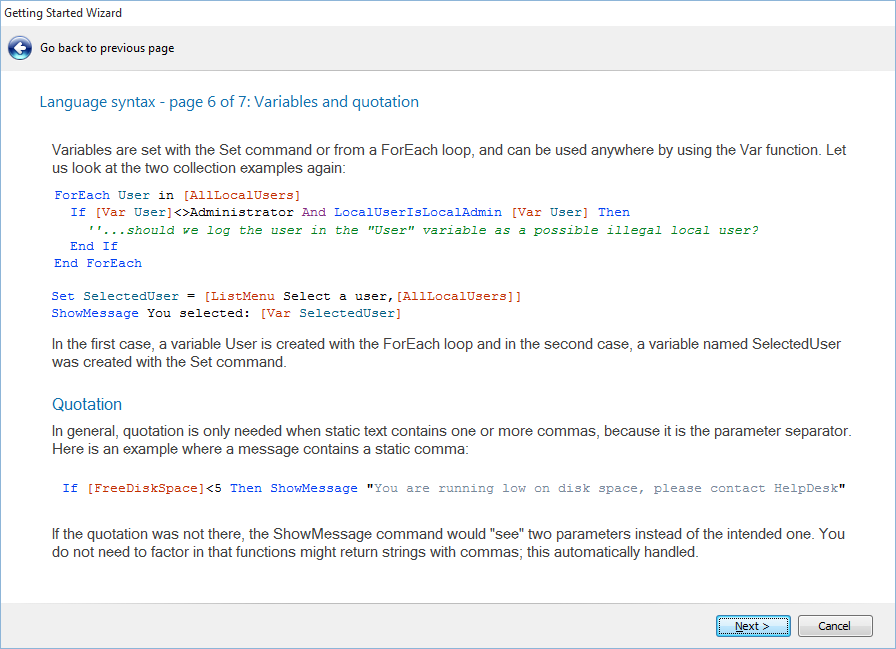
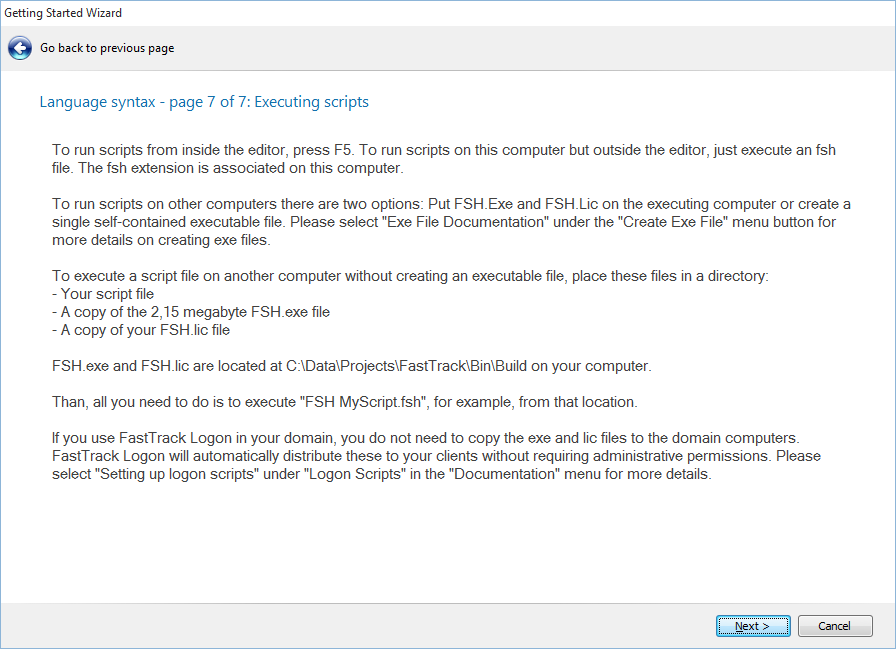
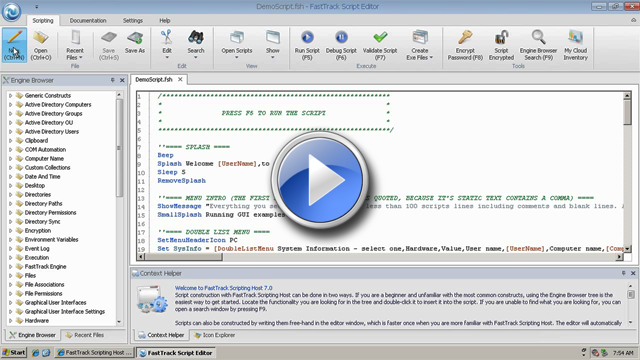
You can also watch the video below, which goes through the absolute basics of writing and executing a script
from the FastTrack Automation Studio editor.
Writing scripts in greater detail
As you could see from the wizard pages, FastTrack scripts generally consist of 5 types: Commands, functions, collections, conditions and loops.
In the first sections, we will be referring to the example below, which could be put into the "Startup"
folder of a computer. Upon execution, it will determine if the computer is at home or at work and
execute script lines based on this logic.
SmallSplash "Connecting,
please wait..."
DisconnectAllShares
If [IPAddressPart
3]=192.168.1
Then
If Alive MyHomeServer Then
ConnectShare O:,\\MyHomeServer\D$
SetPrinterDefault \\MyHomeServer\HomePrinter
Else
If Not ProcessRunning outlook
Then LaunchMin [ProgramFilesDir]\Microsoft
Office\Office12\OUTLOOK.EXE
SetPrinterDefault \\ACMESERVER\PRT012
End If
Commands
A command is an operation that "does something", like performing a file operation, connecting a share, etc.
Everything else is basically there to support the commands. In our example above, "SmallSplash" and
"DisconnectAllShares" are examples of commands. You can write your
own custom commands, please refer to
this article for more information.
Functions
A function is notated with square brackets, like [UserFullName] and is replaced by the result of the function
before commands are executed. In this case it would be replaced by the currently logged on users' name.
In the example above, "IPAddressPart" and "ProgramFilesDir" are functions that are replaced by the 3 first
digits of the current ip address and the program files directory path respectively.
You can use functions inside functions like [UserFullName [Var user]]. Like with commands, you can write
your own custom functions, please refer to
this article for more information.
Think of a function as a textual replacement before commands,
conditions and loops are executed. A command will see the replaced function value when it executes.
Parameters
Parameters are always separated by commas and can be written inside quotes.
If a parameter contains one or more static commas that are not intended as a parameter
separator, a quotation is needed. If a parameter does not contain commas, quotation is
not needed, but can be used for readability. Consider this example:
If [FreeDiskSpace]<5 Then
ShowMessage "Your harddrive space is too low, contact
HelpDesk",Error
If the first parameter was not quoted, the engine would "see" a total of three parameters,
which will result in a run-time error, because only two parameters were intended. Refer to
the
Executing programs page for more examples on parameters and quotes.
Collections
A collection is essentially the same as a function, except that it returns a list of values instead of
just one value. The loop/foreach iterators and some commands and functions take a list of values as
input parameters. The purpose of a collection is to use it as a list of parameters to feed these.
This example will ask you to select a user from the list of domain users:
Set SelectedUser = [ListMenu Select user,[AllUsers]]
Effectively the "AllUsers" retrieved the list of users and passed that as a list of parameters to the
"ListMenu" function as parameter two and forward. For simplicity, let's assume there are only the two users "PDH" and "RDJ" in the
domain. Then the above example would product the same result as statically entering this:
Set SelectedUser = [ListMenu Select user,PDH,RDJ]
The example in the "Loops" section further down makes use of the collection "SubDirectories".
The collection "SubDirectories" will build a list of values (directory names) and pass that
as a list of values/parameters, as if it was statically entered in the script.
It is also possible to build a custom collection. The custom collection functionality
is shown under the "Custom Collection" item in the script editor Engine Browser tree. A collection
is initialized by using the "CreateCollection" command and then during execution, items can be
added to the collection using the "AddToCollection" command. The custom collection is then used
by passing its name to the collection that is named "Collection". A good example of a custom collection is
the Obsolete Account Report script shown
here.
As a footnote, it should also be mentioned that a custom collection can be return from a custom function, see
here for details.
Variables
A variable is defined with the command "Set" and retrieved again with the function "Var".
This example would show a menu with the names of all local groups and put the selected
group name into the variable "Group". The second line would display the content of the variable
"Group" in a messagebox:
Set Group = [Menu Select a group,[AllLocalGroups]]
ShowMessage [Var Group],You selected
If preferred, you can use a dollar sign instead of the Var function, for shorter syntax.
This means that the script below is the same as the script above.
Set Group = [Menu Select a group,[AllLocalGroups]]
ShowMessage [$Group],You selected
If-statements with boolean conditions
Conditions in the engine browser tree are boolean (true or false) conditions.
A boolean condition is used with an if-statement. If the condition is true,
the inner code is executed, otherwise not:
If Portable Then
SyncDir [UserDocumentsDir],[UserHomeDir]\DocumentsBackup
End If
In this case, the backup is only performed on a portable computer. You can always specify "not" after
if for the opposite result, effectively yielding the same result with a "Not Desktop" condition.
A condition can be switched with an optional "Else" in between. Lines 3 (If), line 6 (Else) and
line 9 (End If) in our first example, is an example of a common If...Then/Else/End If construct.
If there is just one command that has to be executed, if the condition is true, it can be entered after "Then".
In that case there must be no "Else" or "End If". This means that the above example can also be written
simply as:
If Portable Then SyncDir [UserDocumentsDir],[UserHomeDir]\DocumentsBackup
If-statements with operators
Conditions in the engine browser tree are boolean conditions and can be used simply like 'If Desktop Then', but conditions
can also use an operator comparison, typically comparing the result of a function. In our first example,
"IPAddressPart" does this. The text returned by the IPAddressPart function is compared to a static text.
Comparison can be equal sign (=) to test
if one side is the same as the other. For testing if values are different, either use the 'not' operator before the condition
or use not equal to (<>).
Less than (<), Less or equal (<=), greater than (>) and greater or equal than (>=)
are also possible, but requires that both sides are numbers, dates, time or date and time combined.
When using operator conditions that require a certain type, a run-time conversion is attempted on
both sides. If one side cannot be converted to a compatible type, a run-time error will occur.
If-statements with multiple conditions
Regular AND and OR operators are possible, as shown below, where a document backup is
performed, if the computer is a portable computer and it is running on A/C. Operators and
boolean conditions can be combined.
If Portable And
Not RunningOnBatteries Then SyncDir [UserDocumentsDir],[UserHomeDir]\DocumentsBackup
While
While constructs are also possible. "While" executes the inner script lines until the subsequent "End While", while the initial condition
is true. Examples of while loops could be performing the iteration until a certain time or iterating through a
string with the IndexOf function. All the same rules that apply to conditions apply to "While".
Note that there is no checking for eternal loops, because this could be intentional; unless intentional,
always remember to think about that the condition must at some point not be true.
Switch
The Switch/Case/Default construct was also introduced in version 6.5 and could also be achieved otherwise in previous
versions. Anything that can be done with a switch construct can also be done with if-statements, but when
conditions get complicated, it is often easier to read and maintain a switch construct.
The "Switch" block will take any value as the switching value and would typically
be the value of a variable from the Var function - or the result of any other function.
The "Case" determines if the lines following until the next "Case", "Default" or "End Switch"
is to be executed or not. If the "Case" value is the same as the switching value, the following
lines are executed.
"Default" is optional and will only be executed, when no other "Case" is true. In the example below,
a variable will be created that will only be true three times a week, which could be used as the condition
to start a backup:
Switch [WeekDay]
Case Monday
Set DoBackup=True
Case Wednesday
Set DoBackup=True
Case Friday
Set DoBackup=True
Default
Set DoBackup=False
End Switch
Multiple case values can be fed to "Case" and must then be delimited by commas. This means
that the above can also be written as:
Switch [WeekDay]
Case Monday,Wednesday,Friday
Set DoBackup=True
Default
Set DoBackup=False
End Switch
Quotation rules described in the "Parameters" section above also applies to "Case"
values. An example of a situation where a Switch construct makes a more readable construct
than if-statements, is reacting intelligently to different Windows Installer error codes after
installing an MSI package using the InstallMSI command or running MSIExec.exe:
Switch [LastExitCode]
Case 0,3010
RegisterInstallation Adobe Reader,10,1
Case 1602,1604
''User cancelled or suspended the
installation, ignore and retry later
Case 1601
ShowMessage Windows installer is
not installed - please contact Help Desk
Default
ShowMessage The installation
was incomplete - please contact Help Desk
End Switch
Loops
Loops are just means to iterate through collections, which has to be ended with "End Loop".
The first parameter is always the name of variable you choose, which contains the actual value inside the loop.
This example will show all files in the root of the C-drive:
Loop Folder,[SubDirectories C:\]
ShowMessage [Var Folder]
End Loop
"ForEach" and "For" are also possible with the above Loop construct. The same construction as above
with ForEach would look like this:
ForEach Folder in [SubDirectories C:\]
ShowMessage [Var Folder]
End ForEach
To get a fixed number of iterations, the Range collection would be used in conjunction with Loop
prior to version 6.2. Version 6.2 introduces a For loop, looking
like this for 10 iterations:
For Counter=1 To 10
ShowMessage [Var Counter]
End For
Escape
Functions and collections are residing inside square brackets, [ and ].
If you are ever in a situation where you need the bracket characters themselves for for instance writing a registry value that
contains them, you must use a function to escape the characters. The [BracketStart] function will produce a start bracket char
and [BracketEnd] will produce an end bracket char.
Comments
A comment can be used anywhere, and is noted as ''. Anything beyond it on a line is considered a comment.
Block comments must start with /* and end with */.
Labels
Any line that starts with a colon is considered a variable. In most other scripting and programming languages, labels
cannot contain spaces for parsing reasons. This is not the case with FastTrack scripts; labels can in fact contain spaces.
The reason for this is that in almost any case you would need goto, spaces will be involved.
Take a look at this example, which is a menu to synchronize data to a selectable server:
SetVar Selected,[Menu
Select operation,Replicate to Server 1,Replicate to Server
2,Replicate to Server 3]
If Not [Var
Selected]= Then
Goto [Var Selected]
Exit
:Replicate
to Server 1
SyncDir C:\Data,\\Acme\Server1\Data
Exit
:Replicate
to Server 2
SyncDir C:\Data,\\Acme\Server2\Data
Exit
:Replicate
to Server 3
SyncDir C:\Data,\\Acme\Server3\Data
Exit
Embedding other scripting languages
If you have a script written in another scripting language that you want to include within
your FastTrack Script, you can simply issue a Run command. If you need to hand over a
status from the embedded script, or an executable, you can facilitate exit codes or store
data in a temporary location. Please refer to
this page
for more information on how to embed PowerShell, VBScript and KiXtart scripts in FastTrack scripts.
Running scripts outside the editor
To run scripts outside the editor on your own machine, you simply double-click the saved fsh file and it gets executed. This will just pass the
script file as the only parameter to the fsh.exe file.
Most likely the actual use of the script is on other machines than the one you created the scripts on.
To execute a script on another machine you need nothing on the target machine, but the fsh.exe and the fsh.lic files from the installation directory.
Just pass the script as the only parameter like this:
To see the command line options, just issue "FSH /?" and look at the last tab.
For distribution to all your clients in a network, it is highly recommend that you use the free FastTrack Logon
here. It will automatically distribute
the engine and logon scripts to all clients seamlessly without requiring any kind of privileges on the client computers.
Error handling
Error handling is essential in any script or program and you can decide how you want it handled.
If there is a file called "ErrorHandler.fsh" in the same directory as the engine (fsh.exe), it gets executed when an error occurs.
You should especially use it with FastTrack Logon. Creating this single line in ErrorHandler.fsh with FastTrack Logon:
AppendFile \\AcmeServer\ITShare\NetworkErrors.log,"[Date],[Time],[Username],[LastError]"
...will append
all execution errors on the entire network to the log file.
Consider the amazing overview you would get as a systems administrator, all errors on all machines logged in a single file!
The engine has two parameters related to the way faults are handled. In general there is a distinction between runtime
errors and script errors. Script errors (malformed script, like a wrongly spelled command) stops the script execution
entirely by default and shows the error to the user, but still runs the error handler script first.
Runtime errors (like a computers' group membership cannot be resolved, because a domain controller cannot be reached)
also stops execution by default and runs the error handler. But you
can decide a different behavior with command-line parameters. If you specify /ie, runtime errors will continue execution
and every time a runtime error occurs the error handler script is executed. If you use this switch, a failing functions will return
a blank string and a condition is never entered.
You can also ignore script faults with /if, but this is not recommended, because you might never find out that your script is malformed.
FastTrack Logon executes logon scripts with /ie to ensure full execution. If you used the line above, you will know what fails instead of showing it
to user.
Note that execution of the ErrorHandler.fsh is a blindfolded execution. It does not include itself again, if there is a
fault it in, since this would produce an infinite loop, so be sure your script actually works.
If it is complex, you should test it by executing it by itself from the editor.