Setting policies using a custom ADMX file
When you used the Logon Script wizard to set up the logon script, a custom ADMX file was put on the computer that executed the wizard.
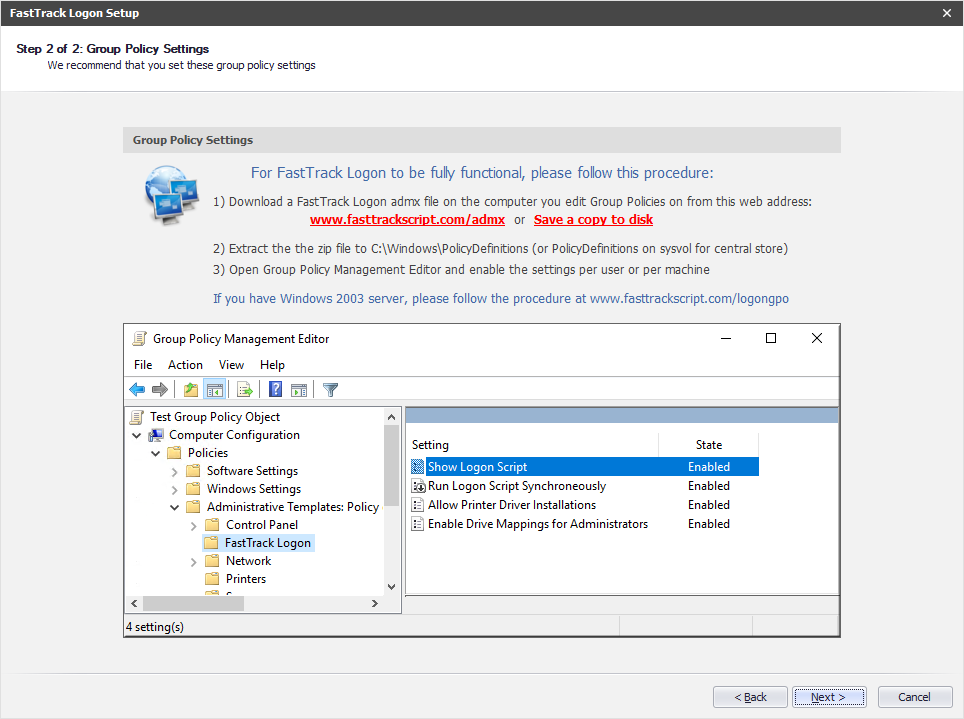
If this computer is a domain controller, where you edit your Group Policy settings, you will automatically have the "FastTrack Logon" item in the
Group Policy Management Editor, as shown below. If it does not appear automatically, follow the procedure under screenshot. You can get to this screen any time
either by walking through the logon script wizard, or in logon script edit mode, click the left "GPO settings" menu. Once you have the "FastTrack Logon"
configuration in place, simply enable all these 4 settings. You can either enable the settings per user or per machine.
If you already have Software Deploy in place
If you have already set up
Software Deployment, you can enabled the same settings here per machine.
You can say that it has no place in Software Deploy, but it is simply there for your convenience, in case you set this up first and now need to set up a logon script.
The screenshot below is from the Software Deployment wizard, where you enable the settings under "Logon Script Policies". If you enable theses settings here, you do not need to set
Group Policy settings also.
Windows 2003 Server
If you are still using the unsupported Windows 2003 server, you do not have support for admx file. In this case, please follow
this alternative procedure, setting the same settings by individual Group Policy settings.
Making your logon script visible
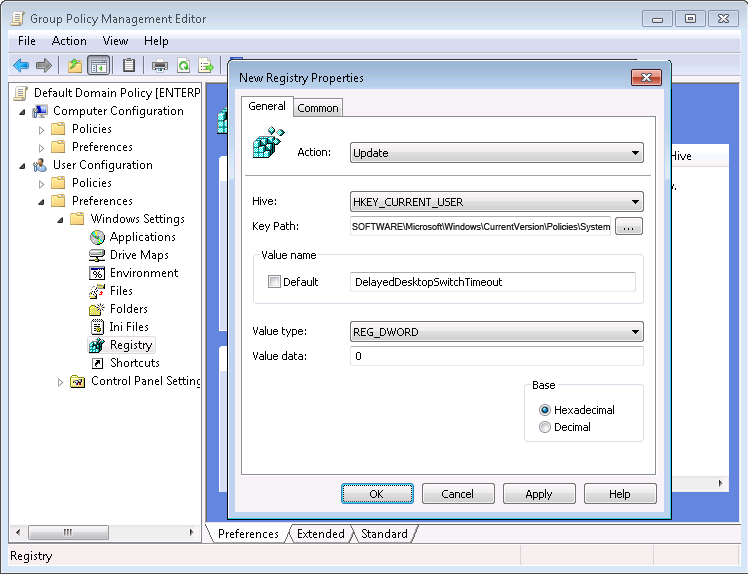
To set the registry key per user, open your Group Policies and locate "User Configuration -> Preferences -> Windows Settings -> Registry"
and create a new registry item using these data:
- Key Path: SOFTWARE\Microsoft\Windows\CurrentVersion\Policies\System
- Value name: DelayedDesktopSwitchTimeout
- Value type: REG_DWORD
- Value data: 0
Enable drive mappings for administrators
When administrators log on, they may not get the drive mappings from the logon script. This is because the logon process runs with an elevated
token, whereas the Explorer starts with an unprivileged token. This is a
UAC explained in
this technet article.
To enable drive mappings for administrators, set this registry the same way as in the previous section:
- Key Path: SOFTWARE\Microsoft\Windows\CurrentVersion\Policies\System
- Value name: EnableLinkedConnections
- Value type: REG_DWORD
- Value data: 1
Run logon script synchronously
If you have not enabled the group policy "Run logon script synchronously", the first part of the logon script may not execute
before the explorer starts, the first time a user logs on.
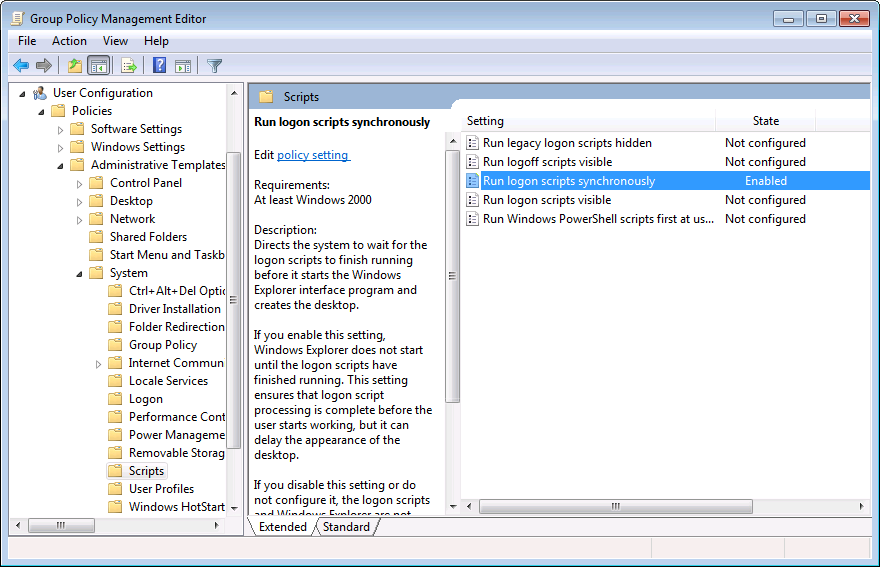
To enable synchronously logon script execution, please set the group policy "Run logon script synchronously" under
"User Configuration -> Policies -> Administrative Templates -> System -> Scripts" to "Enabled".
Allowing printer drivers to be installed for unprivileged users
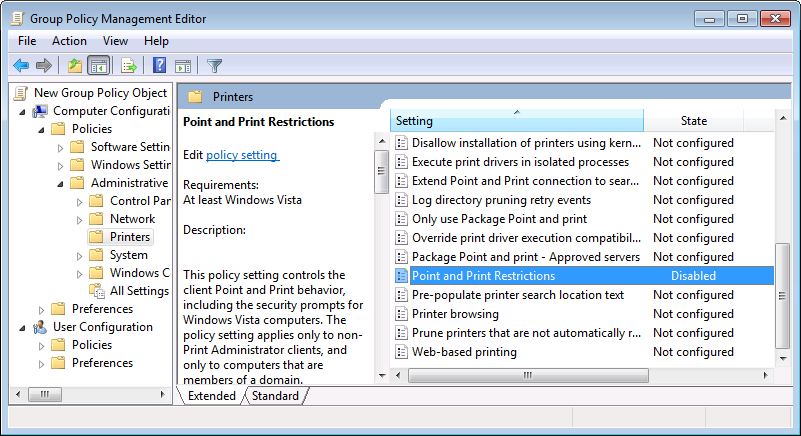
If you use the ConnectPrinter or ConnectIPPrinter commands to connect printers, you should remove the security warnings for installing printer drivers.
Locate "Point and Print Restrictions" under "Computer Configuration -> Policies -> Administrative Templates -> Printers"
and set to "Disabled". Under Windows 2003, this key exists under
"User Configuration -> Policies -> Administrative Templates -> Control Panel -> Printers" instead.
Booting into the desktop on Windows 8.1
While you have the registry preferences open for the user or computer, you might as well set a key for booting into Desktop Mode
on Windows 8.1, assuming this is your company preference. To boot directly into Desktop Mode on Windows 8.1, create another entry with these data
(0 = Start in Desktop Mode, 1 = Start in Start Screen):
- Key Path: SOFTWARE\Microsoft\Windows\CurrentVersion\Explorer\StartPage
- Value name: OpenAtLogon
- Value type: REG_DWORD
- Value data: 0