Setup execution
The SmartDock files are automatically copied to the netlogon share as part of setting up a
FastTrack Logon Script, which means you do not even have to deploy anything, once
you have set up the general logon script on the LAN. As part of the logon process, the files are cached in a local folder and
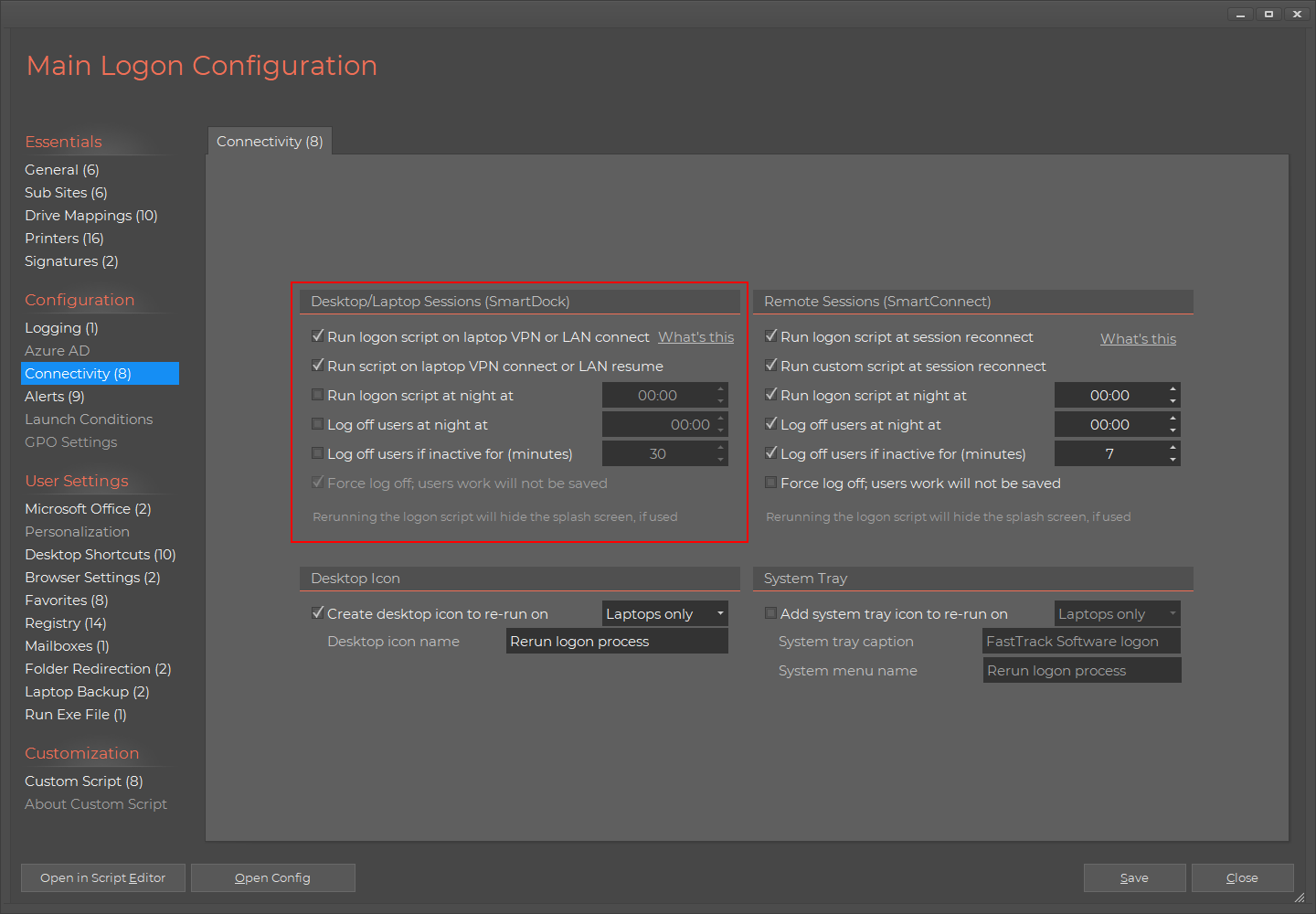
no deployment is therefore needed. You only need to activate it in the Logon Script Builder, which looks like this:
Rerun the logon script
In the simplest form, click the first option ("Rerun logon script on laptops on VPN connection or LAN resume")
to rerun the full logon script in these scenarios. What this does, is that whenever the laptop
connects to VPN or resumes on LAN (if for example the user moved from a meeting room back to the office), the full
logon script is simply rerun. The only difference to the "normal" logon script is that the big splash screen is not shown, as this is would be
annoying to the end user. The big advantage of rerunning the logon script is that printers will be adjusted to reflect the new location.
Custom script
If you need to do something advanced in these scenarios, you can also check the second option to run a custom script.
The reason for doing this could be enabling and disabling a proxy server, based on whether the user is on LAN or not.
Refer to the advanced section below for more details on this.
Rerun at night
The last option is to run the logon script at night, which is a very useful feature. Note that this option applies to both laptops
and desktops. The reason this is a useful feature, is that users may be logged on for weeks at a time. If you change printers
for example or you need to move server storage (users' drive mappings), you would otherwise have to notify everyone to log out and on again.
Also, Office 365 has expiration of sessions. If you use the SharePoint and/or OneDrive drive letter mapping, the user needs to logon again
after 5 days' inactivity. With this setting on, the user will be prompted to logon again, when this applies. So when the user makes a relogon
to the current desktop session, they will be prompted to logon to Office 365 again, instead of having drive mappings unavailable. Alternatively,
you can click the option to create a desktop icon to rerun the full logon script at the bottom and notify users that they can always click that
instead of logging off and on.
Advanced use (custom script)
Before we look into what a custom script can look like, if you are not using the Logon Script Builder, you need
to install the utility without the builder. This is very simple, just insert this command anywhere in prelogon.fsh:
Note that the command has NO effect on desktop computers; it only installs the utility on laptop computers (see next section).
Only exception is, if the nightly rerun is activated, which will run the utility on desktops too with the feature only.
The command makes SmartDock execute any time the user logs on, whether the computer is on LAN or not, because it points to the local
cache of your logon scripts - and you don't need to update SmartDock.exe or the SmartDock script manually. Once the users logs on to the LAN,
the local cache files are automatically updated along with the logon script files.
Since the files are replicated to a local cache folder, when executing the LAN logon script, SmartDock can now execute both with and without LAN access.
Configuring SmartDock
SmartDock comes with a file called SmartDock.xml. This XML file is the configuration file for
SmartDock. The reason that the settings are in an XML file instead of using registry keys, is that the settings
can then be deployed along with the exe file. SmartDock.xml is located on in fshbin folder on your netlogon share
along the SmartDock.exe file and looks like the below by default.
Note that if you use the Logon Script Builder, most over these settings are set every time the logon script is saved.
Therefore it is not adviced to change anything, if you use the Logon Script Builder.
<SmartDock>
<RunScript>True</RunScript>
<RunLogonScript>True</RunLogonScript>
<RunAtStartup>False</RunAtStartup>
<RunOnIPChange>True</RunOnIPChange>
<RunOnIPLost>False</RunOnIPLost>
<AutoRerun>True</AutoRerun>
<IdleHours>24</IdleHours>
<DailyRerun>False</DailyRerun>
<DailyTime>00:00</DailyTime>
<ExecDelayInSeconds>10</ExecDelayInSeconds>
<LogEvents>False</LogEvents>
<LogFile></LogFile>
<StartupMessage>User logon</StartupMessage>
<LogoffMessage>User logoff</LogoffMessage>
<ReconnectMessage>User reconnected</ReconnectMessage>
<DisconnectMessage>User disconnected</DisconnectMessage>
</SmartDock>
The purpose of the AutoRerun feature is to get a script executed every once and a while for desktop
computers that are almost always on and rarely logged on and off. The most relevant settings explained:
|
RunAtStartup
|
Determines if the script is executed when StartDock.exe is started.
|
|
RunOnIPChange
|
Determines if the script is executed when an IP address is changed.
|
|
RunOnIPLost
|
Determines if the script is executed when all IP addresses are lost.
|
|
AutoRerun / IdleHours
|
Determines if the script is executed when is has not been executed for the number
of hours defined with the "IdleHours" setting.
|
|
DailyRerun / DailyTime
|
Determines a fixed time of the day to rerun the script(s).
|
|
ExecDelayInSeconds
|
The delay in seconds before executing the script. When connecting through VPN, DNS
information may not be propagated for a few seconds. The default 10 seconds is
normally a good tradeoff interval (Default: 10).
|
There are also option for logging. These are used, when advanced logging is enabled in the script builder.
SmartDock is then enforcing the execution of the audit logging.
Example custom script
SmartDock executes a script named "SmartDock.fsh" in the same directory as the SmartDock.exe.
In the FastTrack Logon binary folder there is already a template script. Typically you would
open your prelogon.fsh script from the logon script and copy some parts of the regular logon
script to your VPN SmartDock logon script.
Remember that the
files in the fshbin folder on netlogon are automatically synchronized to a local cache, so
you only need to edit the script file on the netlogon share and it will automatically be
updated in local caches. A SmartDock.fsh script could look like this:
SmallSplash "Setting
up network, please wait..."
If Alive AcmeProxy
Then
SetProxyServer AcmeServer,8080
ConnectShare J:,\\AcmeServer\CommonShare
ConnectShare [UserHomeDrive],[UserHomeDir]
Else
DisableProxyServer
DisconnectAllShares
End If
If the server AcmeProxy is reachable, proxy server is set and two shares are connected. If the server is not reachable,
all shares are disconnected and the proxy server is disabled to make sure that the user can actually browse the internet
outside the company. You could also detect whether the user is on a LAN or not by checking the IP scope. You can expand the script
with all sorts of other things specific to your company needs. Remember that the script will also execute on LAN after
your logon script, so do not do anything that voids the functionality of the logon script.
You should consider to include the UploadInventory command at the end of your script, if you want your VPN computers to upload inventory information;
please refer to
this page for more information.
SmartDock as an MSI package
If you do not like the FastTrack Logon installation approach or you need to use SmartDock for non-domain computers, you can also build an
MSI package with the SmartDock files. Please refer to
this page for more information.
If SmartDock is deployed this way, SmartDock will be installed locally and execute every time a user logs on, thus yielding the same result.
However, the FastTrack Logon approach should be preferred, because the files are automatically updated, when they are changed on netlogon and
you will also be able to "filter" your laptops for installation of SmartDock with the "Portable" condition.
Note that the MSI version uses the SetStartupItem (per machine requiring admin permissions),
whereas the FastTrack Logon approach uses SetUserStartupItem and installs it per laptop user profile.
Supplement backup script example
This example could be part of a SmartDock script. If the primary backup routine
is located in the prelogon.fsh part of the logon script or put as an on-demand
backup on the user's desktop, it is a good idea to remind them, if they do not
backup their documents within a certain number of days. As we know that SmartDock
will eventually fire the script every day, we can check that the backup is recent.
The "DoBackup" custom command below stamps the time of the backup to the registry. If there is an
additional backup routine in the logon script or as an on-demand desktop icon, this
script must set the same registry key. So when a user connects to VPN without a
recent backup, the user is asked the question below and answering 'Yes' will refresh the
backup.
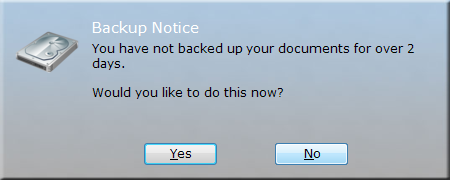
The script listed below and is a template script to do this. The registry key names "Acme Corporation"
should be replaced with your company name. The initial condition tests, if the server "AcmeServer" is reachable.
This is to detect, if there is access to the corporate network. This server name must be replaced by
a server name that you have on your network, for example the actual target server of the backup.
If Portable And Alive AcmeProxy Then
If Not RegistryValueExists HKCU\Software\Acme
Corporation,LastBackup Then
If Ask "You never backed up your
documents.[Return][Return]Would you like to do this now?","Backup
Notice","Harddrive" Then DoBackup
Else
If [RegistryValue HKCU\Software\Acme
Corporation\LastBackup]<[SubtractDays 3] Then
If Ask "You
have not backed up your documents for over 2 days.[Return][Return]Would
you like to do this now?",_
"Backup
Notice","Harddrive" Then DoBackup
End If
End If
End If
Command DoBackup()
SyncDir [UserDocumentsDir],[UserHomeDrive]\Backup\[ComputerName]
WriteRegistry HKCU\Software\Acme
Corporation\LastBackup,[DateTime]
End Command
The script requires version 6.6. For earlier versions, the "Empty" condition must be replaced
with a comparison to an empty string and the third parameter to the "Ask" conditions
must be removed. The third parameter selects the "Hardrive" icon.