Blocking multiple application starts by same user
To create the simplest possible demonstration setup, we will start Notepad as a Remote Desktop Services RemoteApp. But we will not start Notepad.Exe directly,
we will publish a script called "Notepad.fsh" that will handle the launch logic instead. This script will then be published as a RemoteApp.
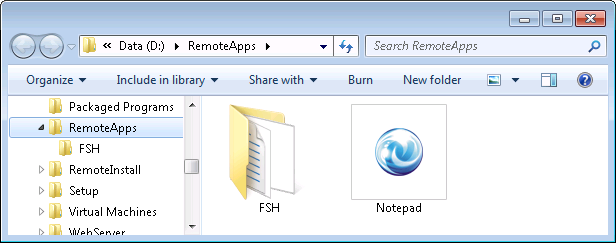
In this case the script is placed on the server in a directory called D:\RemoteApps, where a sub-folder called "FSH" contains a copy of FSH.Exe and FSH.Lic:
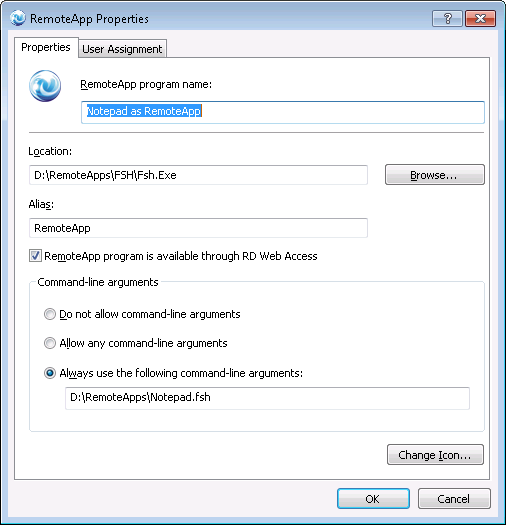
We now need to create the RemoteApp to start the Notepad launch script. We need to start FSH.Exe and pass the Notepad.fsh script file
as a parameter. Our new RemoteApp properties look like this:
The Notepad.fsh script must enforce starting Notepad.exe only once per user and for this we
need the condition "UserProcessRunning", which (unlike ProcessRunning) looks only
at processes of the current user.
So if we wanted to let any one user start notepad only once as a RemoteApp, we could
simply check if there is already a similar process running under this user account.
This simple script is enough to enforce the rule:
If Not UserProcessRunning Notepad.exe Then
Launch Notepad.exe
Else
ShowErrorMessage Notepad can only
be started once per user.
End If
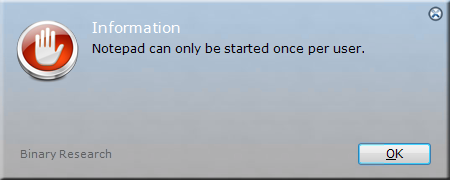
The second time any one user starts the rdp file for the RemoteApp, this message is
shown:
The script could easily be expanded with more logic. For example - in the real world, not all
users are equally important. If we wanted to block execution of notepad, but not for a certain group
of users, we can simply add another condition. In the script below, a user may start Notepad multiple
times, if he or she is member of the group "AcmeSuperUsers".
If Not UserProcessRunning Notepad.exe Or UserIsMemberOf AcmeSuperUsers Then
Launch Notepad.exe
Else
ShowErrorMessage Notepad can only
be started once per user.
End If
Stateless version
The reason the above script works is because the TS Session Broker will direct a user to the
same server, if the user already has a session. If other load balancing technologies are used and
a user therefore may be served by different servers, it is of course not possible to identify
existing sessions by looking at process information, as these reside in memory per server.
We need to store session states somewhere else and in this case we will use
a SQL Server database to host session state changes.
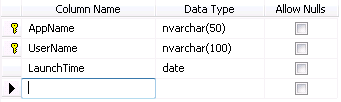
The schema for this example is as shown below.
A new table named "AppState" is created in a database called "RemoteAppState":
Basically all we have to do is to make sure a record is written at launch and then deleted,
when the process has completed. When the script is started, a check is needed to see, if a
record is present in the combination of the application name and user name. Such a script could
look like this:
Set SqlInstance=192.168.1.3
Set AppName=Notepad
Set LastLaunch=[SQLQuery "SELECT LaunchTime
FROM AppState WHERE AppName='[Var AppName]' AND
UserName='[UserName]'",[Var SqlInstance],RemoteAppState]
If VarIsEmpty
LastLaunch Then
ExecSQL "INSERT
INTO AppState (AppName,UserName,LaunchTime) VALUES ('[Var AppName]','[UserName]',GetDate())",[Var SqlInstance],RemoteAppState
Run Notepad.exe
ExecSQL "DELETE FROM AppState WHERE AppName='[Var AppName]' AND
Username='[UserName]'",[Var SqlInstance],RemoteAppState
Else
ShowErrorMessage Notepad can only
be started once per user.
End If
Creating boot menus
It is also possible to create menus with simple scripts. This voids the need for lots
of different .rdp files and only one published application is then necessary. The script below
is a simple example, where Office programs and the fictitious company Acme's ERP system
are made available to everyone.
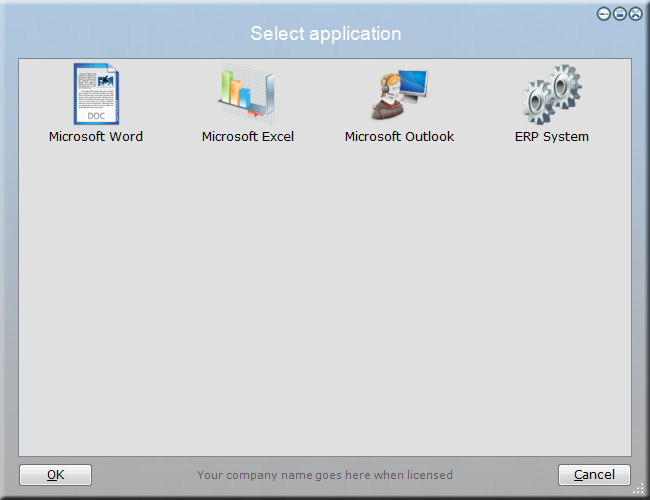
Set App = [Menu Select
application,Document|Microsoft Word,Chart|Microsoft Excel,User|Microsoft
Outlook,Process|ERP System]
Switch [Var App]
Case Microsoft Word
Launch [ProgramFilesDirx86]\Microsoft
Office\Office14\WINWORD.EXE
Case Microsoft Excel
Launch [ProgramFilesDirx86]\Microsoft
Office\Office14\Excel.EXE
Case Microsoft Outlook
Launch [ProgramFilesDirx86]\Microsoft
Office\Office14\Outlook.EXE
Case ERP System
Launch [ProgramFilesDir]\Acme\Acme
Corp\AcmeERP.EXE
End Switch
In the real world it is of course unlikely that all users may actually start all applications.
The example below builds a menu based on user domain group memberships instead. You can insert
this example in the script editor by selecting "RemoteApp Boot Menu" in the "New Script" window.
/**** CREATE
AN EMPTY COLLECTION ****/
CreateCollection AvailableApps
/**** ADD
APPLICATIONS BASED ON USER GROUPS ****/
If UserIsMemberOf
OfficeUsers Then
AddToCollection AvailableApps,Document|Microsoft Word
AddToCollection AvailableApps,Chart|Microsoft Excel
AddToCollection AvailableApps,User|Microsoft Outlook
End If
If UserIsMemberOf
ERPUsers Then AddToCollection AvailableApps,Process|ERP System
/**** EXIT IF
NOTHING IS AVAILABLE ****/
If CollectionIsEmpty
AvailableApps Then Exit
/**** SHOW
MENU ****/
Set App = [Menu Select
application,[Collection AvailableApps]]
/**** LAUNCH
SELECTED APP ****/
Switch [Var App]
Case Microsoft Word
Launch [ProgramFilesDirx86]\Microsoft
Office\Office14\WINWORD.EXE
Case Microsoft Excel
Launch [ProgramFilesDirx86]\Microsoft
Office\Office14\Excel.EXE
Case Microsoft Outlook
Launch [ProgramFilesDirx86]\Microsoft
Office\Office14\Outlook.EXE
Case ERP System
Launch [ProgramFilesDir]\Acme\Acme
Corp\AcmeERP.EXE
End Switch