Pros and cons of exe files
A FastTrack script can be executed directly, if fsh.exe is present. It can also be compiled into a stand-alone exe file, as shown above.
The only drawback of saving as an exe file is that the original script must be kept as the source code for future editing, because the original
script can never be retrieved from the exe file. If you are considering compiling your script into an exe file only to protect your content,
you should be aware that you get the same level of protection simply by
encrypting your script.
But there are many scenarios where a single exe file is the best choice. An exe file can run on any computer without including
an FSH.Exe and FSH.Lic file and can simply be served on a network drive, usb stick, CD, DVD, from an intranet or internet server or zipped in an email.
It is extremely flexible and you have certainty that the recipient cannot in any way alter the content or see the original script, including any
credentials that might be embedded into the script. You also have the option of packing additional files into your exe files (see next section).
Exe file compilation would therefore be relevant in at least these scenarios:
- You are a consultant writing scripts for customers and don't want them to have the original scripts or you want to be make sure there are no alterations to the scripts.
- You have little or no control over executing computers.
- Executing computers are not accessible for servicing and you need to give someone a secure script over the internet, by mail or similar.
- You have installation scripts in a relatively public location and you want to ensure the users do not copy the installation files or credentials.
- Your scripts are in a relatively public area, such as an education center, and you have concerns that external users may copy your license key.
- Other administrators also have your private key and you want to make sure no one else can edit your scripts.
Note that producing an exe file or using the original script makes no difference to the licensing requirements.
Any compiled exe file will be compiled with license information of the creator and licensing rules are the same.
Executable projects
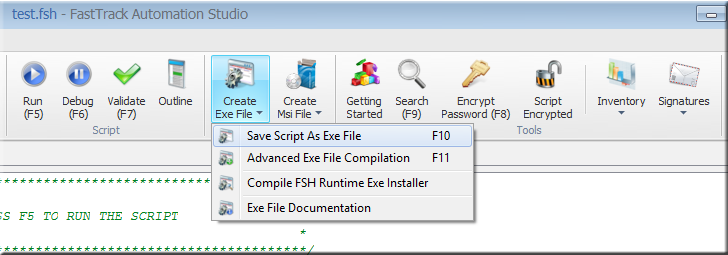
You will have two options for creating an exe file from the "Create Exe File" menu:
- Save Script As Exe File (F10): This compiles your open script into a single executable file (see movie at the top).
- Advanced Exe File Compilation (F11): This compiles your open script and embeds other files in your script directory structure into a single executable file. Compiling a script and additional files into one exe file is referred to on this page as an executable project. You can also use the advanced exe file compilation to set properties on the output exe file without embedding other files. This is explained further down this page.
An executable project is basically the same as a script compiled into an exe file, except that it also includes other files.
This means that you can repackage a whole directory structure and include your own custom script into
one single self-extracting exe file. The files will be unpacked to the executing users' temporary directory and the script
that was the base of the project is executed after unpacking as the "boot" script. You can then for example create a company specific repackage
of a whole software installation if you wish, including your custom script, into a single exe file without compromising credentials and
other sensible information in your script.
To setup a project to repackage, follow these steps:
- Create a project folder
- Create a script file in the root of the structure that will be the boot script
- Include all other files for the project in the project folder or subfolders
- Open the boot script and hit the "Advanced Exe File Compilation" button (or press F11)
In the movie below, the scenario is this:
- The network administrator wants to create a pool of common applications where users can self-service to get some software installed, without consulting the IT department.
- Any one installation must be one executable file to avoid users copying the installation files.
- Executing users are not administrators.
- The process must be completely automatic without requiring user interaction, except asking to install or not.
- There is a local administrator account on all computers that have the same password known only to the network administrator.
- Executing users must not be able to get the credentials of the local administrator account executing the installation.
In the example below, a single 90mb exe file is produced that will install Adobe Reader using a custom administrator account.
Exe file properties
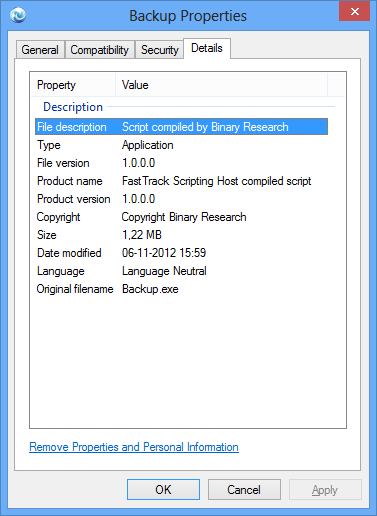
The movie above was recorded using version 6.3. If you are using version 8.2 or newer, exe files
have properties that show the name of the creator and the project creation screen is a wizard.
A generated exe file on could look like this on Windows 8, when showing the properties of the file:
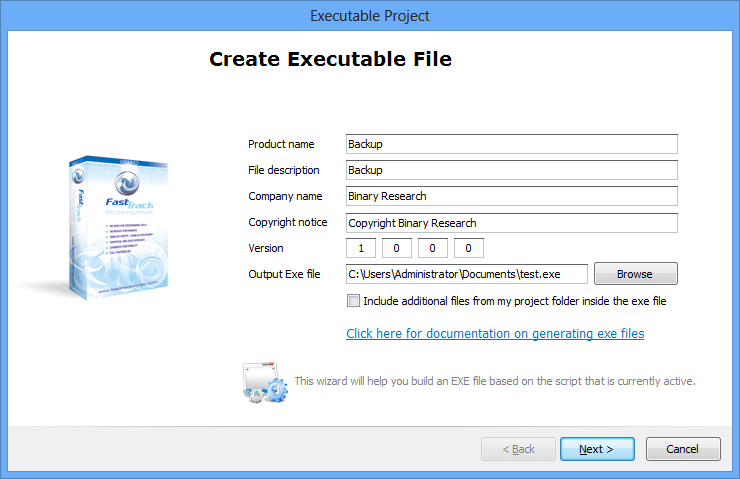
You can overrule all these properties. When you select the "Advanced Exe File Compilation" option,
you can overrule the default information, as shown below.
If you need to set the information for the "Save Script As Exe File" option (no additional files), you must use the
"Advanced Exe File Compilation" menu item instead and uncheck the "Include additional files from my project folder inside the exe file" checkbox to exclude additional files. This will in effect be the same as the
"Save Script As Exe File", except that you now have the option to set the exe file properties.
Command line compilation
It is possible to compile scripts from command line. A tool called Build.Exe is located in the installation directory of FastTrack Automation Studio,
which can be called to compile script files into exe files without using the script editor. The syntax is:
Build.Exe /Quiet /ScriptFile <Input Script File> /ExeFile <Output Exe File>
If the /Quiet switch is specified, the successful conversion message will not be shown. In case of an error, an error message will always be displayed.
You can call "Build.exe /?" to get a full list of command-line switches.
Protecting content
This section and the next section are extracts from the
Software Deployment page
describing how to package a script and installation files into one single exe file that can be placed in a public location for
computers that is not accessible for servicing.
Please refer to that page for more details on creating installation scripts.
Creating a single exe file based on a script and installation files has a number of advantages
over all other possible alternatives for these types of machines:
The users cannot get a copy of the installation files, the users do not have to
be administrators and credentials can be safely included in scripts.
If an exe file is put in a public location, we need to protect it
from abuse. We could achieve this by simply asking for a password that only internal users
know. If we inserted this at the top of the script before getting
to the script lines that actually perform the installation:
If Not [InputPassword
Enter
installation password]=Sesame Then
ShowErrorMessage The password is
incorrect.
Exit
End If
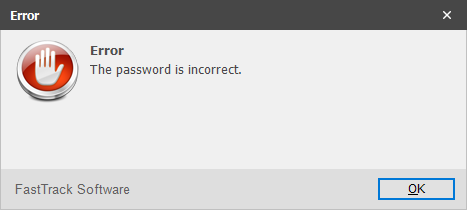
Then the user will see this, when running the exe file:
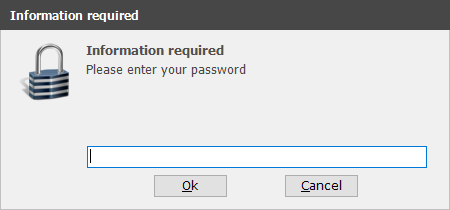
If the user did not enter "Sesame" in this case, then the user gets an error and the exe
file exits.
Getting permissions and privileged
If the offline users are local administrators, we can continue to the actual
installation script lines that execute the installation.
If the local user may be under User Account Control, we might need to
elevate the user to be able to actually execute the installation. To
handle this, we simply need to insert one script line before we
start the installation:
Please refer to the
User Account Control page for
more information on the ElevateUser command.
If the user is not local administrator, but we know the name and password of a local
administrator account that is not under User Account Control, we can simply change the
executing user before doing anything that requires administrative privileges:
ChangeUser LocalInstallUser,6orateocIkCmGChbGYLg0w==
What is important to understand is that all this will be compiled into a single
executable file and the executing user will have no chance of getting any information
from inside the script. The output exe file can be put in a public location
and the url and start password can be handed out.
Digitally signing your exe files
If you plan to deliver your exe files over a public infrastructure, as suggested above,
you might want to digitally sign your
executable file. You can use Microsoft Authenticode to sign your output exe file the same way that
you can sign any other exe file.
FastTrack Software cannot warrant the content of your scripts and therefore generated exe files are
not digitally signed. You can however purchase your own digital signature from for example
VeriSign and
sign your generated exe file with the Microsoft tool Signtool:
SignTool.exe sign /f <YourPrimaryKey>.pfx /p <YourPassword> /t <VerificationUrl> <YourExeFile>
Please refer to the
official signtool page
for more information on digitally signing exe files with signtool.