Home
Solutions
Download
Purchase
Documentation
Get Help
Reseller
My Account
Testimonials
Customers
Contact

Compiling scripts into a Windows Installer (MSI) files

FastTrack Scripting Host can compile your script and optional binary files into a Windows Installer (.MSI) file by a single mouse-click. The output MSI file can be either a normal one-time installation or an installation of a scheduled task that runs your script daily.

FastTrack Scripting Host already had support from the version 6 branch for creating self-contained exe files for scripts of any type, but there is one limitation that cannot be overcome with exe files - Microsoft supports only Windows Installer (.MSI files) for automatic software deployment through group policies and many common management systems effectively have this same limitation.

But - you might want to reconsider, if you actually need to repackage everything into MSI files. And if you do, learn how to truly repackage instead of relying on dangerous snapshots. Read on for more information.

Building an installation MSI package

The option to build MSI files enables you to build your own installers based on a FastTrack Scripting Host (FSH) script - and more importantly, if you prefer to deploy your software through group policies or Microsoft System Center, you can wrap installations that are not in Windows Installer format to make them distributable through these technologies without using unreliable snapshots.

Scripts you compile into MSI files are self-contained, which means that the MSI files you create do not require FSH to execute. If you include or start other FSH files from within your compiled MSI script, these will also work without FSH on the executing computer. A good example of including other scripts from within your compiled MSI file is the Deploying applications to server farms example.

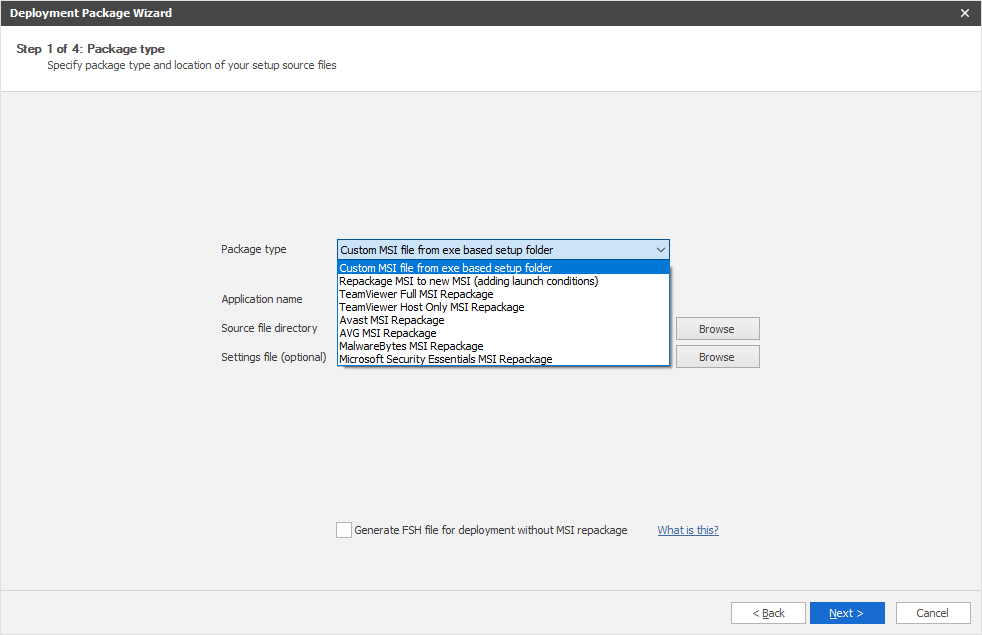
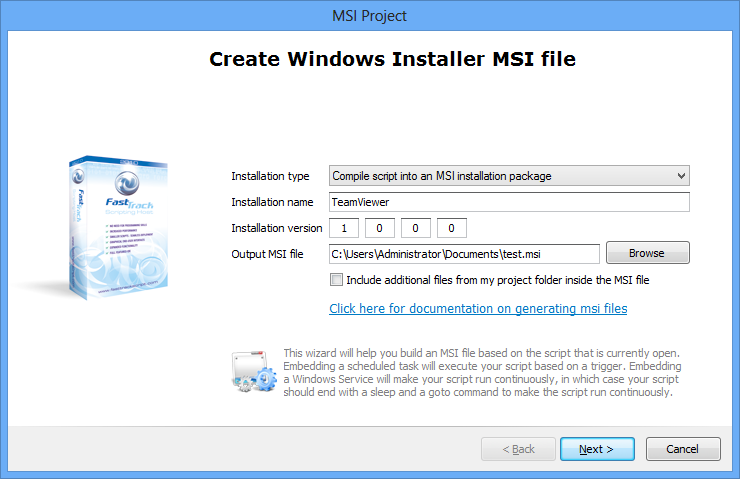
To create an MSI file, just open any script, click the MSI menu item, fill in the MSI information and you have an MSI file:

MSI installation properties

Building a scheduled task to deploy through group policies

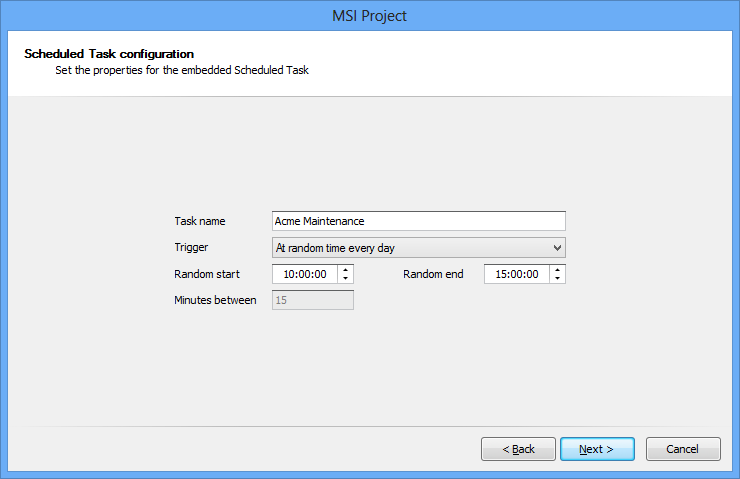
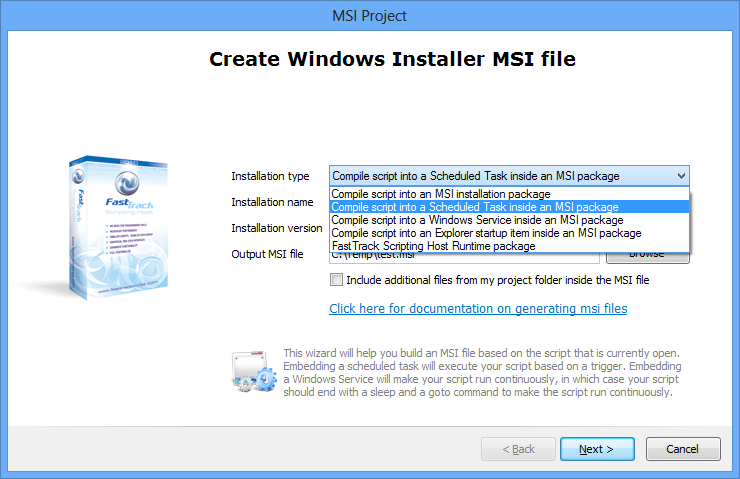
You can also compile your script into a scheduled task that is contained inside an MSI file, by selecting "Scheduled task inside MSI package" in the "Installation type" drop down list on the first page of the MSI generation wizard (see screenshot above). This will produce an extra page in the wizard that looks like this:

Scheduled task contained inside an MSI package page 2

As with installation MSI files, you do not need FSH to be installed on target machines, as the MSI is self-contained. This option allows you to create recurring scripts that can perform maintenance, upload inventory data, be a controller of for example installations to avoid having them happen at the same time on too many computers or all of these at the same time in the same script. The trigger time is automatically spread at random across off-peak hours of your choice, allowing heavy tasks to be spread evenly across off-peak hours.

A scheduled task using a randomized trigger time is a good way to get a trigger script installed in a server farm, as was the case with the Deploying applications to server farms example. But it can also serve as a means to get around User Account Control (UAC) limitations for installations. Please refer to the UAC page for more information on this subject. At the bottom of this page scheduled tasks inside MSI files is explained in more detail.

When to use MSI files

Using scheduled tasks inside MSI files serves a specific purpose and these are not for installation of a specific piece of software, but may be a controller for other installations. The MSI is in this case merely a container for distributing the scheduled task. But speaking MSI packages for installation of specific software, the most important thing to give some thought to is, if you actually need them to be in MSI format at all, if they ship with something else. If you know the unattended switches, doing MSI repackaging is not because it makes sense, but because there is a technical limitation.

Generally speaking, there are two very different scenarios. For servers it natural to deploy software packages or scheduled task controller scripts through group policies, as no one logs on to these machines. If you chose the scheduled task option (see the server farm deployment example), there is no reason to not just use the native installer. If you for example want TeamViewer on a number of servers, it doesn't make sense to repackage it. Why not just go "Run TeamViewer_.exe,/S" in a script (see example further down)? If you're repackaging something so low-level as TeamViewer using a snapshot, it is downright dangerous to the target server and you could effectively destroy things like registry driver chains, worst case resulting in a server that can no longer boot. If you have to distribute non-MSI based software for servers, consider either the server farm deployment example or repackaging a native installer without using snapshots (see further down).

For workstations, it is a little more complicated. The optimal way to handle installations is not to just add MSI installations to your group policies, as there is no control over the distribution process. Even if you have only say 100 computers and your installation package is large, it is already undesirable to just let all computers install at the same time with group policies. In such a case you would need to factor in things like network peak hours, simultaneous installs and maybe even computer types and other conditions. And when you have more than a couple of installation packages, group policy installations become unscalable, because you would not have a policy for each group of computers that need a certain installation package. Group policy installations are in general usable only for servers or small packages that all computers or users must have.

In such a scenario, it is recommended that you run your workstation installations through your logon script, startup script or a scheduled task controller script contained inside an MSI (see further down), where your actual installation files in all these scenarios are on a network share and you can control which computers get which software, for example by using computer domain groups. In such a setup, it is not required to use MSI packages, as long as you know the unattended switches for your setup files. Please consult the installations page for general information on scripting installations. Once you control the launch of the actual installer from your own script, you can make a simple simultaneous counter to avoid flooding or you can use the scheduled task option to spread the load automatically.

A tip to get software distributed to offline computers: You can generate a self-contained exe file that includes installation files and your credentials to allow the installation to be performed. Please consult the exe files page for more information on generating exe files.

Compiling scripts into MSI installation files

As with exe file generation, you have two main options for compiling your script: One for just executing a script with no additional files (Compile Script) and one for executing your script and including additional files (Compile Project):

Compiling script to MSI file

You do also have the option "Compile FSH Runtime MSI Installer". This will create a small installation package that installs fsh.exe and a copy of your license key file into the program files directory on the executing computer and then performs a system-wide association of .fsh files to the installed fsh.exe file. Note that if you are using FastTrack Logon, it is not necessary to deploy FSH to workstations and generated MSI or exe files do not need the run-time either.

The first two options do not install FSH. What happens is that when your MSI file is executed, your package files are extracted to a temporary folder and executed without requiring FSH to be installed on the executing computer. The script that you had opened when you created the MSI package is the boot script that is included and executed. Once the script is complete, all temporary files are deleted. If the package is later re-installed or uninstalled, this procedure is repeated.

Let us first just compile a script into a Windows Installer file. With any script open, clicking "Compile Script To MSI File" will display the dialog below and the output MSI file is compiled from the open script.

MSI creation properties

The installation name and version are the information shown in the Windows programs list in the control panel. The reason the version is not auto-generated as relatively unimportant information, is that you can use the version to actively re-install packages. If you increment the version and re-install, the "Major Upgrade" feature of Windows Installer is used and that means running the installation again will not fail, but automatically run the uninstaller of the old package and the installer of the new package. This is usable if you update a maintenance script and want to re-deploy it, because then you do not need to worry about whether the target machine already had the package in an older version or not.

Running the output Windows Installer file will show a welcome dialog (see below) and a complete dialog. When you install the packages through group policies or a management system, the installation will run in unattended mode and these dialogs will never be shown.

Windows Installer interface


Compiling a project into a Windows Installer (MSI) file

A good reason to use the Windows Installer generation is to wrap installations that are not already in Windows Installer format, if you want to deploy through group policies or a management system. As mentioned earlier, if you need to re-package, give some thought to whether you are using the right strategy or not.

Assuming there is a need to re-package, let's assume you need your VPN software as an MSI and it comes with a different installer. You cannot just deploy it through group policies or a management system. Often snapshot technologies are used to convert a proprietary installer into Windows Installer format, but this is an approach that must be avoided at all costs - especially when it includes drivers, firewall rules and other low-level elements. It will never work on a hundred different machines, especially if they are not all the same operating system. You are bypassing the installation logic of the vendor with snapshots and it's impossible for any snapshot software to "discover" all the rules behind the installation logic.

If you know that you can just run "Setup.Exe /Quiet" or similar, it is frustrating to not be able to deploy it through group policies. But this is now possible with the MSI generator of FSH. Basically you can just put your setup.exe in a directory and create a script file in the same directory that just issues for example "Run Setup.Exe,/Quiet" and then clicking the MSI project button will generate an .MSI file. That's it, no additional steps needed.

Another scenario could be applications that are made in-house that you want to wrap. Let us try an example that can be reproduced without any third party installation files. Let us assume we wanted to use SmartDock, but we do not use FastTrack Logon for logon scripts, so we need another way to deploy it. We would then need to deploy the FSH engine file, our license file and the SmartDock files and finally set SmartDock to run for everyone that logs on.

To accomplish this, we will create a new folder with a script file and a sub-folder called "Bin" in a new folder. In the bin folder we need a copy of 5 files, making our complete project directory structure look like this:
  • SmartDock Runtime.fsh (The installation script that we create next)
  • Bin\Fsh.Exe (Fsh engine)
  • Bin\Fsh.Lic (Your license key)
  • Bin\SmartDock.Exe
  • Bin\SmartDock.Fsh (The script that SmartDoc executes)
  • Bin\SmartDock.Xml (SmartDock configuration)
The main script that we called "SmartDoc Runtime.fsh" could look like the script below. When we select the "Compile Project To MSI File", this script must be open, as MSI packages are created based on the open script.

Set InstallDir=[ProgramFilesDir]\Acme Corporation\FastTrack Scripting Host

If [CmdParam Action]=Install Then

  CopyDir Bin,[Var InstallDir]

  Run [Var InstallDir]\Fsh.Exe,/Associate

  SetStartupItem SmartDock,[Var InstallDir]\SmartDock.Exe

Else

  KillProcess SmartDock.Exe

  Run [Var InstallDir]\Fsh.Exe,/Unassociate

  DeleteDir [Var InstallDir]

  RemoveStartupItem SmartDock

End If

Observe how there is a check for a command-line argument called "Action". You have to factor in that your package can be uninstalled. If you are thinking that it never will, remember upgrading will also trigger uninstall with the old package script and install with the new script. If you do not "react" to the action and just include an installation part, effectively your script will also run the installation, when asked to uninstall.

When an MSI file created with FSH is started, a command-line argument is passed, as it would if you passed "/P Action=Install" to fsh.exe. The "Action" command-line argument can be "Install" and "Uninstall". There are only these two possibilities. So if the "Action" parameter is not "Install" in the above script, we will uninstall everything gracefully.

As is also the case with project exe files, the location of the additional files, which are unpacked to a temporary installation directory before execution, cannot be known up front and will vary from client to client. Therefore all references to files and folders must be relative, as it is also the case with the bin folder in the example script.

Now we need to compile the script and the additional files in the "Bin" folder. Therefore we need to select the "Compile Project To MSI File" to create a single MSI file that includes all needed files:

Creating MSI file from project

This will pop up the MSI properties window to generate the MSI file. Fill in the basic properties on the first page. The second page in the wizard is selection of files to include, as shown below. Observe that when selecting project generation, all files in the script folder and all sub-folders are included with the option to un-check files to exclude.

MSI generation project properties

Now that we have a single MSI file, we can deploy with for example Microsoft System Center. As not everyone has Microsoft System Center, in this case we will just deploy our MSI through regular Group Policy deployment:

Group policy for software installations

When we log on to a computer that is under the control of the above group policy, the MSI file is installed on system startup as shown below with a Windows XP client.

Installing software through group policies

And if we chose to remove the MSI file from the Group Policy, the uninstaller runs as shown below on the same Windows XP client.

Uninstalling software through group policies


TeamViewer 7 example

A common example of re-packaging is TeamViewer 7. You can download a single TeamViewer.exe that will install the software and then start it. If you run the installation package, you will find two files are unpacked in the temp folder. If you copy the TeamViewer_.exe file from the temp folder, it can be run using /S to install silently. But it will still start the program after installation. The script below will install the software and kill the process after installation. Put the TeamViewer_.exe in the same directory as the script and compile into an MSI project, and you have a fully unattended MSI version of the TeamViewer installation - without using snapshots.

Run TeamViewer_.Exe,/S

KillProcess TeamViewer.Exe


Scheduled task contained inside an MSI package

As you might have noticed from the screenshots, there is a dropdown list at the top of the properties window. There are two options, and the other option is to install the script or project as a scheduled task instead of an installation package:

Scheduled task contained inside an MSI package page 1

Selecting "Scheduled task inside MSI package" in the "Installation type" drop down list inserts another page into the wizard flow upon clicking "Next", where you configure the scheduled task:

Scheduled task contained inside an MSI package page 2

Your script does not get executed, when you install the MSI package with the scheduled task option. Instead the MSI installation process installs a scheduled task, which runs your script or project as a single compiled executable. When a computer installs the output MSI for example through group policies, a random time between the random start and end times is selected on each machine and the task runs every day at this time. The default is between 10am and 3pm, because if you use it for workstations and you have thousands of computers, no computer gets the task triggered at typical logon hours and all computers' trigger times are spread over these 5 hours. This is ideal to make sure that there is no network congestion while for example installing an updated Microsoft Office. For servers it would be natural to change the random start hours to for example between 2am and 5am.

For a script of this type to be flexible, it would be a good idea to not let the scheduled task contain the installation logic (like determining if an installation must happen or not), but instead simply include a script on the network. So the script inside the MSI may even look as simple as this:

Include \\AcmeServer\Install$\InstallationLogic.fsh

Assuming the task is installed with domain credentials, this will basically just run another script off the network, which avoids the need to update the scheduled task frequently, because it contains no logic itself.

Another example is a maintenance task that has to happen daily. The maintenance task could cleanup temporary files, verify free disk space or check that no unauthorized user is a member of the local administrators group and send an email to the administrator or log an online event, in the event any of these conditions are not met.

A third example is that if you have a large number of computers, you may have concerns uploading inventory information from computers within the logon hours. In this case, you could create a script containing only the inventory command, as shown below and compile that into an MSI scheduled task.

UploadInventory

It has to be pointed out that the bandwidth consumed for inventory upload is marginal, even with a large number of machines. If this package is then deployed to a thousand computers, statistically only 200 computers would actually run the script per hour and never outside the 10am to 3pm non-peak window. As no information is typically changed from one run to the next, the uploaded information per minute becomes marginal.

Scheduled tasks for servers

Note that random start and stop hours can be set through the random start and end input fields on the generation screen. If you prefer another interval other than the default 10am to 3pm, you can set different start and stop time. This would be relevant, if you wanted to distribute a server-only maintenance script through GPO to handle backups, reboots and other maintenance tasks. Setting both values to the same value sets a fixed time.

Note that there are no options to use a scheduled task trigger other than a daily trigger. This is because you can insert logic to exit at the start of the script on certain days or other conditions. If you want to run a script multiple times a day, you can create a loop using SleepUntil and exit after the last execution of the day.

Refer to the Deploying applications to server farms as an example of using scheduled tasks inside MSi files for servers.

Command line compilation

It is possible to compile scripts from command line. A tool called Build.Exe is located in the installation directory of FSH, which can be called to compile script files into exe and MSI files without using the script editor. Start Build.exe without parameters to see a complete list of parameters. For example to compile a script into MSI, the typical syntax is:
Build.Exe /Quiet /ScriptFile <Input Script File> /MSIFile <Output MSI File> /MSITitle <Installation Name> /MSIVersion <Installation Version>
Remember to quote parameters that have spaces, which would typically be the case for the installation name. If you want to create the MSI as a scheduled task, include the /MsiScheduledTask switch. If the /Quiet switch is specified, the successful conversion message will not be shown. In case of an error, an error message will always be displayed.

MSI Compilation summary

Watch Senior Technical Writer Steve Dodson from Binary Research International walk you through the basics of the material presented on this page.


NOAA GLS Maersk Kawasaki Disney Goodyear Telenor AJG All testimonials ->
More customers ->